TAILGIFT / AI PET ART
AI Pet Portrait Generator From Your Photo
Start with the face you know best. Turn a photo of your dog or cat into personal artwork, explore a different way to tell their story, and decide what the portrait becomes after you create it.
Artwork generation is available. Upload a photo and choose an available style. Each successful artwork uses 1 credit; failed generations return their reserved credits.
From a Photo to Your Pet’s Portrait
1. Choose a Clear Photo
Upload a photo with visible eyes, ears and distinctive markings. Start with the pet or pose you want to remember; you do not need to choose a physical product first.
2. Choose a Style and Generate
Compare the available styles and select the look you want. Sign in to generate using your credits. Check each result against your pet’s markings, expression and outline.
3. Keep the Artwork or Use It in a Design
Find your completed artwork in your gallery. Reuse it for an A4 tattoo sheet or a Name Tag preview, with separate layout settings for each product.
See the Photo Behind the Style
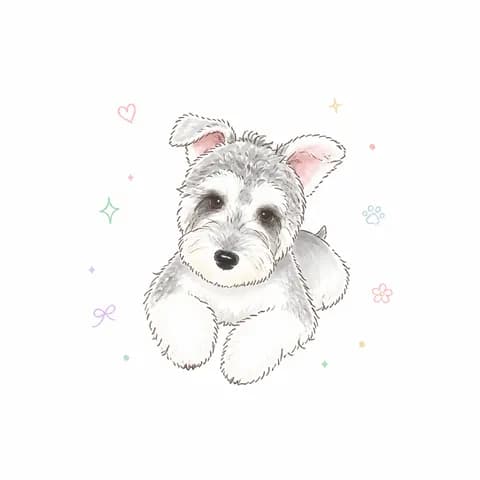
Compare familiar features across the reference and artwork. Color Realism keeps color and shading central; Chibi Color Cartoon turns those features into a compact, expressive character. These examples show the existing TailGift styles. Your own result can vary.
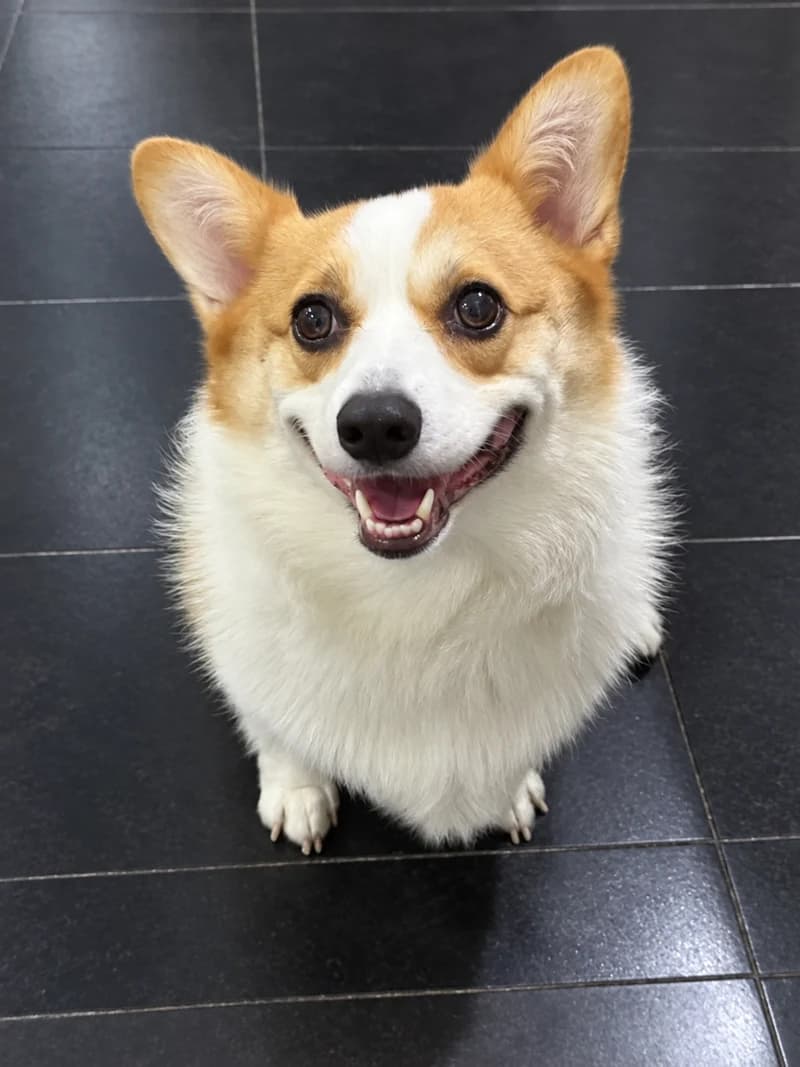
Reference Photo
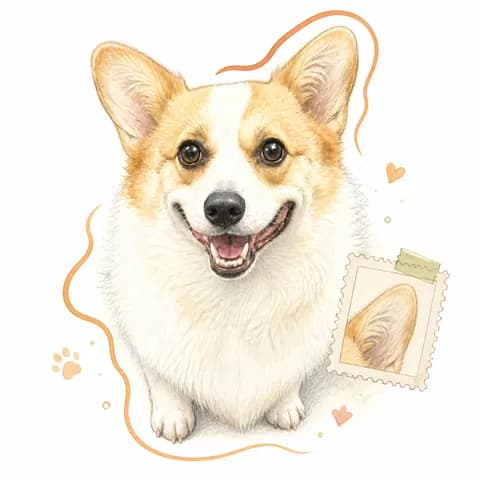
Color Realism
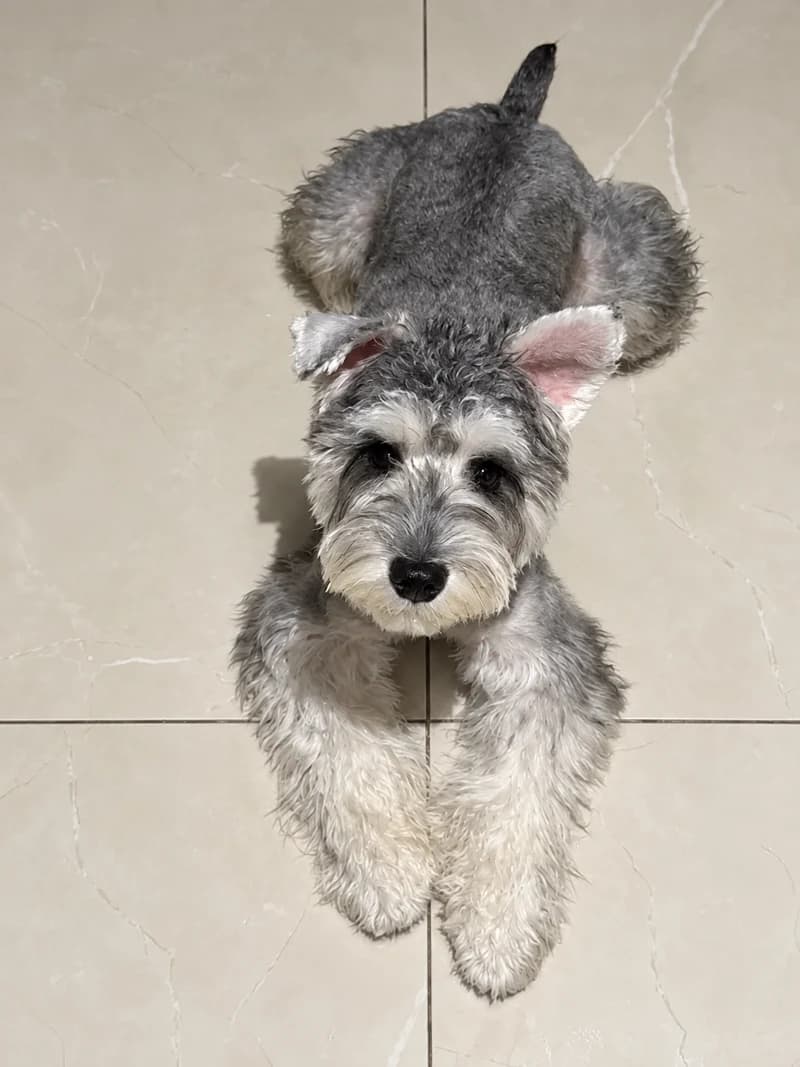
Reference Photo
Chibi Color Cartoon
Explore line, ink, color and narrative examples in the style guide. A Coming Soon style can be explored, but cannot yet be selected for generation.
Choose a Photo That Shows What Matters
Use a sharp image in natural light. A close-up helps when the eyes, muzzle and facial markings are the focus. For full-body artwork, choose a reference that includes the ears, paws and tail you want to keep. Heavy filters, small screenshots and objects covering the pet make those features harder to judge.
Choose a still JPG, PNG, WebP or HEIC photo, up to 15 MB and 40 megapixels. Supported HEIC photos are converted on your device before upload. If conversion fails, export a JPG and try again.
Choosing a photo uploads a temporary copy so you can continue through the creation steps, including signing in. Temporary uploads expire after six hours. A photo used for a generation is linked to your account.
Read the Photo GuideCredits, Saved Artwork and Design Previews
New accounts receive 10 free credits. Each generated artwork uses 1 credit; failed generations return their reserved credits. You can request up to 4 available styles in one batch within your credit balance. Upload a photo, choose an available style and generate your artwork.
Any active account limits are shown in the creation flow. Check your balance before starting another generation. A selected style does not guarantee an exact likeness, so review the result before using it.
Using existing artwork on another product does not request another generation or spend generation credits. Each product keeps its own design settings. Purchasing is not open yet. Name Tags and the other Coming Soon products remain previews; saving an artwork or design does not place a paid order.
Explore Keepsake DesignsA Few Things to Know
Do I Need to Buy a Product to Create Art?
No. Start with your photo and an available style. You can choose a product later, or keep the artwork in your gallery.
Can I Include More Than One Pet?
Use a separate clear reference for each pet. Create their artworks separately and combine selected artworks in the A4 tattoo sheet editor. Multiple pets in one generated portrait are not guaranteed.
Does Reusing My Portrait Use More Credits?
Using existing artwork on another product does not request another generation or spend generation credits. Each product keeps its own design settings.
Is the Preview a Finished Product?
No. Artwork and layout previews help you review a design. They do not establish the exact physical size, material, color or relief of a manufactured product.