How to Make a Set of Pet Coasters Look Coordinated
By TailGift
Published
Give four personalized pet coasters a shared look with a simple background palette, balanced portrait sizes and a consistent approach to names, while keeping each pet distinct.
Artwork generation is available: 1 Ink per successful artwork, returned if it fails. Payment is not open yet: orders are saved as requests and not charged.
Choose One Visual Rule for the Whole Set
To make a set of custom pet coasters look coordinated, repeat a few choices across all four pieces: a background color or small palette, a similar visual size for the portraits, and one approach to names. The pet images can differ. A shared layout helps those differences feel intentional.
Start with the person receiving the gift. For a friend who prefers a quieter look, one background and artwork without names can be a useful starting point. For someone who enjoys a more playful arrangement, try two related background colors and repeat each twice. These are design choices you make in the preview, rather than an automatic matching feature.
Use Backgrounds to Bring Different Artwork Together
One background color is the easiest choice to compare across four pieces. Check it against every pet: a shade that separates dark fur clearly may make pale whiskers harder to see. If you choose two colors, keep their contrast with the portraits in mind as well as how the colors look beside each other.
TailGift's background color sits behind the artwork. An image with an opaque white background keeps those white pixels; changing the coaster background does not remove them. For a set containing both transparent artwork and a white-background image, a white layout can be a practical way to keep the backgrounds visually consistent.
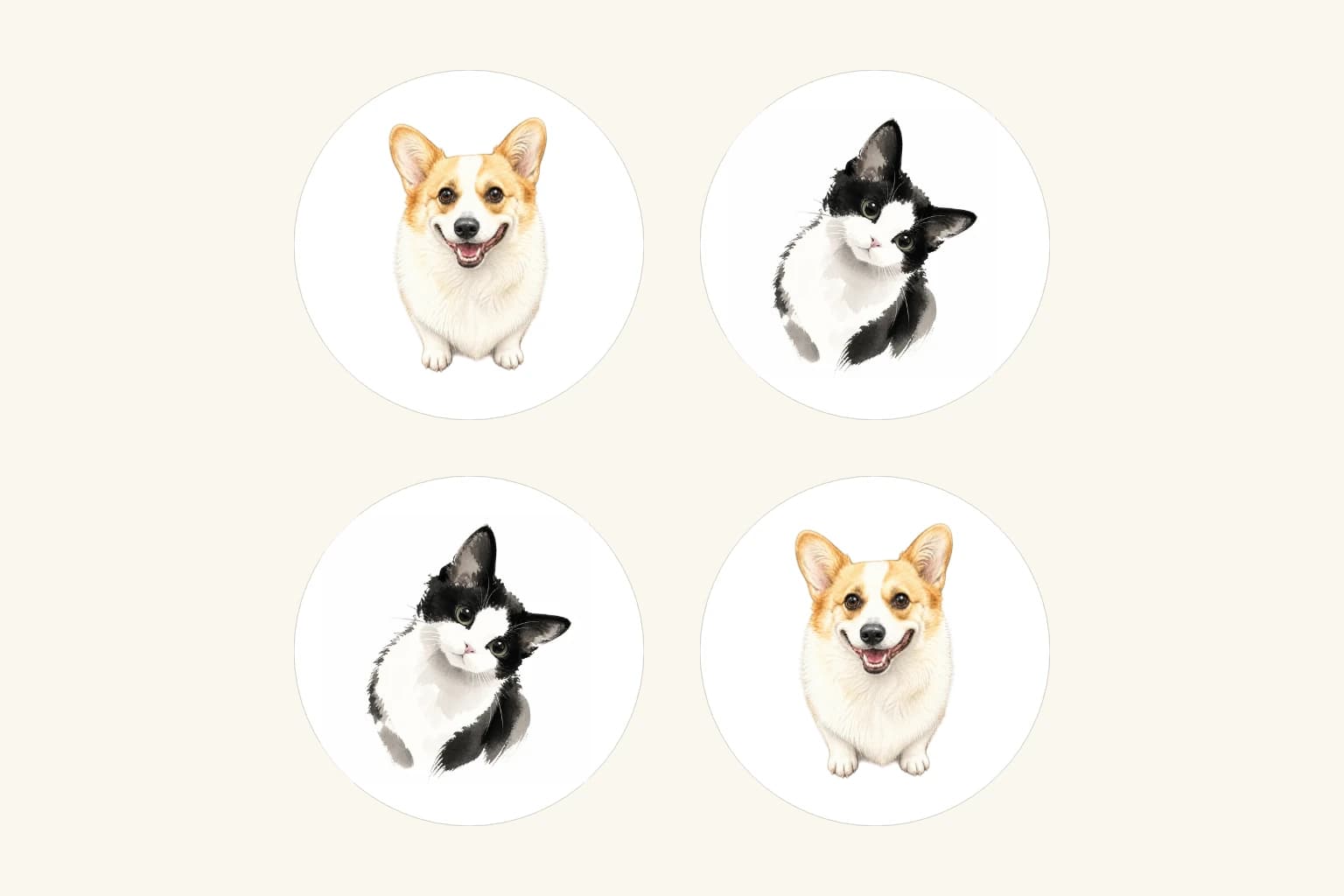
The image here uses existing corgi and black-and-white cat artwork, each repeated twice on four white round layouts. The artwork styles differ, while the shared background and similar visual size connect the set. These are two-dimensional design previews made with the current coaster preview component, not photographs of physical samples.
Balance the Portraits by Eye
Compare the size of the visible pets, not just the artwork-size number. A close-up face can look much larger than a full-body pet at the same setting. White space or transparent padding inside an image can also affect how large the pet appears.
Select each coaster and adjust its artwork size and position until no single portrait dominates unintentionally. Leave room around ears, whiskers, paws and any visible tail. Similar eye positions can help a set of head portraits feel balanced, but a sitting pet may need a different placement. Preserve the details that make each pet recognizable rather than forcing every silhouette into an identical crop.
The current outlines use nominal dimensions, and the suggested inset is illustrative. It helps you review a layout; it is not a verified printable boundary or a guarantee that every detail will reproduce in the finished product.
Repeat a Starting Layout, Then Personalize Each Piece
On the Custom Pet Coasters page, enter the design preview and choose the four-piece option. Choose a saved artwork to begin, then select a coaster to edit. The first artwork is initially repeated across the four positions, so check each position before saving.
The editor's Copy another coaster's design control can give another piece the same starting layout. It copies the artwork, name, colors, size, position and rotation together. After copying, replace the artwork or name on the selected piece if that coaster should show a different pet, and recheck its placement.
You can then adjust the background color, optional name and name color for each piece. Reusing saved artwork and adjusting these layouts do not use Ink. Creating a new artwork is a separate step with its own generation confirmation.
Make Names Consistent Without Crowding the Portraits
Choose whether the set will use names before finishing the layouts. Names on all four pieces can work well for a household with several pets; artwork alone can also give the set a consistent look. If you include names, use a shared text color that remains readable against each background, and confirm the spelling with someone who knows the pets.
Adding a name changes the space allocated to the artwork in the current preview. Check the portrait again after entering the name, especially when one piece uses a longer name or a wider portrait. The lettering sits in the preview's fixed name area; do not assume it can be moved or resized separately.
Review All Four Together Before Saving
Look at the complete set and then select each piece for a closer check. Confirm the intended artwork in every position, a deliberate background pattern, comfortable space around each portrait and the correct names. Watch for an unintended duplicate left over from copying a layout. A coordinated set can show one pet repeatedly or different pets; either choice works when the repetition is intentional.
TailGift currently offers nominal 10.3 cm round coaster designs as a single piece or a set of four. You can save the layouts and review an estimate. Ceramic samples and ordering are still pending, and real payment is not open. The previews do not establish finished relief, use or care performance, or a delivery date. Use the coaster page below to explore the current design options, and confirm actual ordering and delivery availability before depending on a set for a gift date.