Round or Square: Choosing a Shape for Your Custom Pet Magnet
By TailGift
Published
Compare round and square pet magnet layouts using the same artwork. Check ears, corners, surrounding space and name placement before saving your design preview.
Artwork generation is available. Upload a photo and choose an available style. Each successful artwork uses 1 Ink point; failed generations return their reserved Ink points. Payment is not open yet. Check each product's page for its current design and order-submission availability; outstanding specifications are confirmed before production.
Should You Choose a Round or Square Magnet?
Choose a round layout if you want a centered pet portrait surrounded by a curved outline. Choose a square layout if your artwork uses its corners or you prefer a straight-edged frame. Either can work for the same pet: the useful test is whether the chosen shape keeps the ears, face and other important details comfortably inside its boundary.
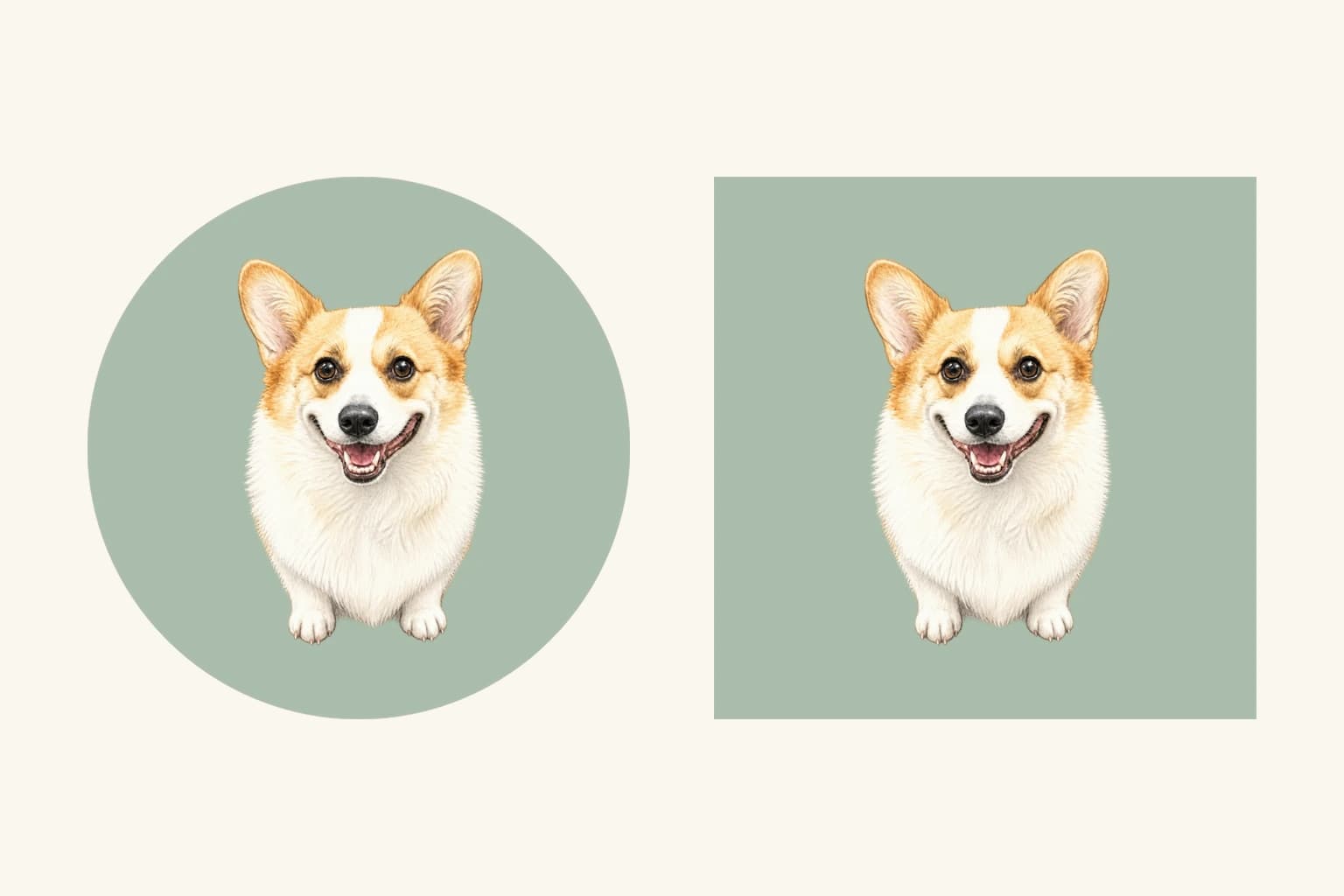
The comparison above uses the same prepared corgi illustration, placement and muted green background in TailGift's nominal 6 cm round and 6 cm square magnet previews. Only the outline changes. The round layout is on the left; the square layout is on the right. These are two-dimensional design previews, not photographs of finished magnets.
Ceramic magnets currently support design and saved quote previews while physical samples await confirmation. Ceramic order submission and real payment are not open. You can use the preview to compare compositions and save a design, but it does not confirm a finished product or a purchase.
Start With the Artwork, Then Compare the Outline
Look at what makes your selected artwork recognizable. A centered face may fit naturally inside either shape. A seated pet, long ears, a tail or a decorative element can extend farther from the center and need more surrounding space. Judge those features in the actual preview instead of choosing a shape solely from the pet's breed.
Keep the same artwork, background color and approximate portrait size for your first comparison. In our example, the corgi stays the same size in both layouts. The square reveals extra background in its corners; the round outline removes those corner areas without changing the illustration.
A square does not automatically make the pet larger. If both previews have the same width and use the same artwork scale, the portrait can remain the same size. The visible difference is the space around it.
Check Ears and Other Details Near the Corners
A circle narrows toward the top and bottom, so the corners of a square image fall outside its boundary. An ear near an upper corner or a decorative mark near a lower corner may disappear when you enlarge or move the artwork. A square outline retains more of those corner regions, although any detail moved past its edges will still be clipped.
Inspect the top of the head, both ears, the sides of the coat and the bottom of the composition. If something important touches the outline, try reducing the artwork slightly or adjusting its position. Then check the whole portrait again: solving one clipped ear should not push the other side out of view.
The preview's edge and suggested inset are illustrative. They are not a confirmed printable area or a production cutting tolerance. Leave comfortable visual space, but do not treat a particular on-screen gap as a manufacturing guarantee.
Account for the Image's Own Background
Changing the magnet shape changes the outer boundary of the layout. It does not remove the background already contained in your artwork. An opaque white square remains part of the image, even when the product background is green; the outer shape only clips the parts that extend beyond it.
The corgi illustration used here was prepared with transparent surroundings for the guide. That is why the selected green background reaches the pet's outline in both versions. This is not a demonstration of automatic background removal in the editor.
If your artwork includes a scene or an opaque background, review how that entire image fits. A square can retain meaningful details near image corners. A round crop can also work, provided the details you want to keep sit within its curved boundary. Choose from what the preview actually shows.
Review the Layout Again After Adding a Name
If you add a pet's name, check its spelling, contrast and position after choosing the shape. The ceramic preview makes room for the name below the artwork, so a portrait that looked balanced without lettering may need another placement review.
A round outline becomes narrower near its bottom. Look at both ends of the name and the space between the letters and the edge. In a square layout, review that spacing too; straight edges do not guarantee that a long name will fit comfortably.
Our comparison deliberately has no lettering so you can judge the outlines alone. For your own named design, look at the complete preview at a smaller screen size and confirm that the face and name remain easy to distinguish. This is a composition check, not a promise of final printed legibility.
Compare Matching Nominal Sizes Before Deciding
TailGift currently includes 6 cm round and 6 cm square ceramic magnet options among its preview shapes. Comparing these keeps the nominal width and height consistent, which makes the difference between the outlines easier to see. The 6 cm figure describes the round option's diameter and the square option's side length.
Nominal dimensions are planning references while samples are pending. They do not establish the final printable area, finished edge, UV relief height or production tolerances. The illustration on your screen also changes size with your display and browser zoom; it is not a physical-size proof.
Once you prefer an outline, review your selected option again with your own artwork. Other sizes or shapes need their own layout check rather than inheriting a decision made from this comparison.
What to Check Before Saving Your Magnet Preview
Confirm the intended shape and artwork are selected. Check that the ears, face, tail and any meaningful decorations remain visible; review the image's own background; and check any name separately. Finally, look at the full composition instead of only the detail you adjusted last.
Open Shop, choose Custom Pet Magnets and use the available design preview to compare your layout. Save the version you prefer and review its quote information. A saved ceramic design or quote is not a submitted or paid order.
Changing the layout of an existing artwork does not request a new artwork generation. If both shapes fit well, choose the framing you prefer. If neither preserves the important features, reconsider the artwork or its placement before trying to solve the problem with a different outer shape.