How to Keep Ears, Whiskers and Tails Inside a Pet Magnet Design
By TailGift
Published
Keep the details that make your pet recognizable: check the source artwork, leave room around the silhouette and review the selected magnet shape before saving.
Artwork generation is available. Upload a photo and choose an available style. Each successful artwork uses 1 Ink; failed generations return their reserved Ink. Payment is not open yet. Check each product's page for its current design and order-submission availability; outstanding specifications are confirmed before production.
Start With the Whole Detail You Want to Keep
For a custom pet fridge magnet, start with artwork that already contains the ears, whiskers or tail you want to show. Then reduce its size and adjust its position until those details sit comfortably inside your chosen shape. Check the outer silhouette as carefully as the face.
A tail is only relevant if it is part of the portrait you chose. A head-and-shoulders design can work well without one; a full-body design needs room for the paws and tail as well as the ears. If a detail is missing from the source artwork, making that artwork smaller will not restore it. Return to another saved work or a more suitable reference photo before adjusting the layout.
Compare the Artwork With the Selected Outline
Look first at the image itself, then at the magnet preview. If the full ear is visible in the artwork but disappears at the edge of the preview, the layout is cropping it. Reduce the artwork size, reposition it or try another available shape.
Round outlines narrow toward the top and bottom. Two upright ears that fit across the middle may extend beyond the curved edge when placed higher up. A wide portrait, long whiskers or a curled tail can need more room than the face alone suggests. Changing to a square or rectangle may suit that silhouette, but check the new outline again rather than assuming it solves every crop.
Make Small Adjustments in the Magnet Editor
Open Custom Pet Fridge Magnets, enter the design preview and choose a saved artwork and a shape. Use the artwork-size control to make the portrait smaller, then adjust its position. Recheck the highest ear tip, both sides of the face and the lowest part of the portrait after each change. If you rotate the artwork, check all of those edges again.
Aim for a little visible space around the details that matter. Avoid pushing the portrait right up to the outline just to make the face larger. Check that the pet is still recognizable at the smaller size; if the portrait becomes too small, a different composition may work better than squeezing a full-body image into that shape.
Use the Comparison as a Layout Example
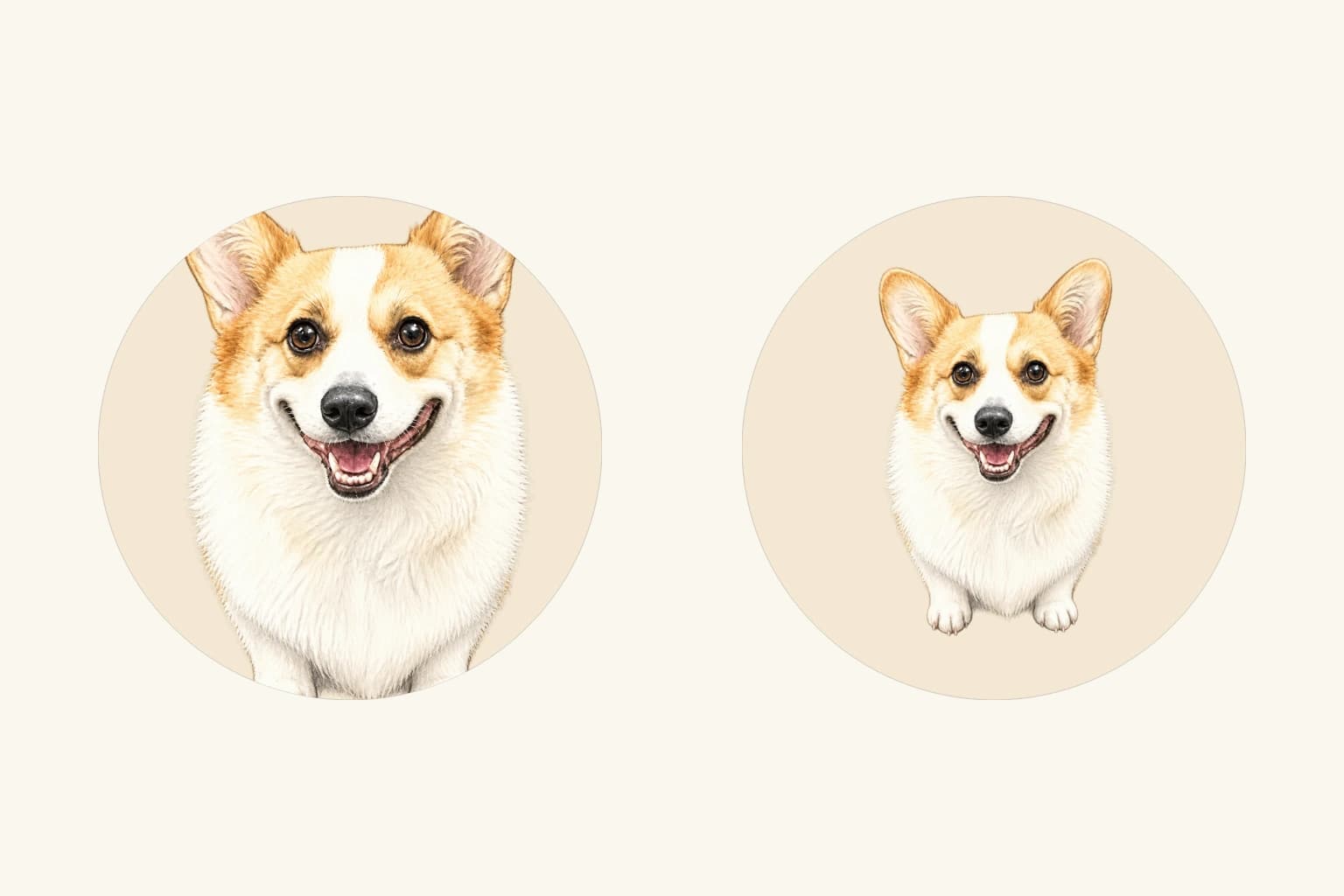
The comparison image shows the same existing corgi artwork in two round magnet layouts. On the left, enlarging the artwork cuts into the outer details. On the right, a smaller placement leaves more space around the pet. Both were made with TailGift's current two-dimensional preview component.
These are design previews, not photographs of finished magnets. The outline uses nominal blank dimensions, and the editor's suggested inset is illustrative. Neither the preview nor an absence of a warning proves that a design fits a verified printable area. Physical samples still need to confirm the dimensions, edges and print placement.
Check Whiskers, Background and the Optional Name Together
A detail can be inside the outline and still be difficult to see. Look for pale whiskers against a pale background and dark fur against a dark background. Try the available background colors while keeping the same artwork size so you can judge the difference. An opaque white background in the artwork remains part of that image; choosing another layout color does not turn it transparent.
If you add a pet's name, check the portrait again. The current preview reserves part of the layout for the name, which changes the space available for the artwork. Confirm the spelling and make sure the portrait and lettering both have room. A name is optional: leave it out if it makes the design feel crowded.
Review the Saved Design Before Planning a Gift
Before saving, check the selected shape, the full silhouette, the face, the background and any name as one composition. Review the saved preview to confirm that you kept the intended artwork and placement. Reusing a saved artwork for a different product calls for another layout check because its shape and available space may change.
TailGift currently lets you prepare and save a custom pet magnet design with an estimate. Ceramic samples are pending, and ceramic ordering and real payment are not open. If this is a gift for a specific date, wait for confirmed ordering and delivery information before relying on it. Use the magnet page below to explore the current shapes and design options.